

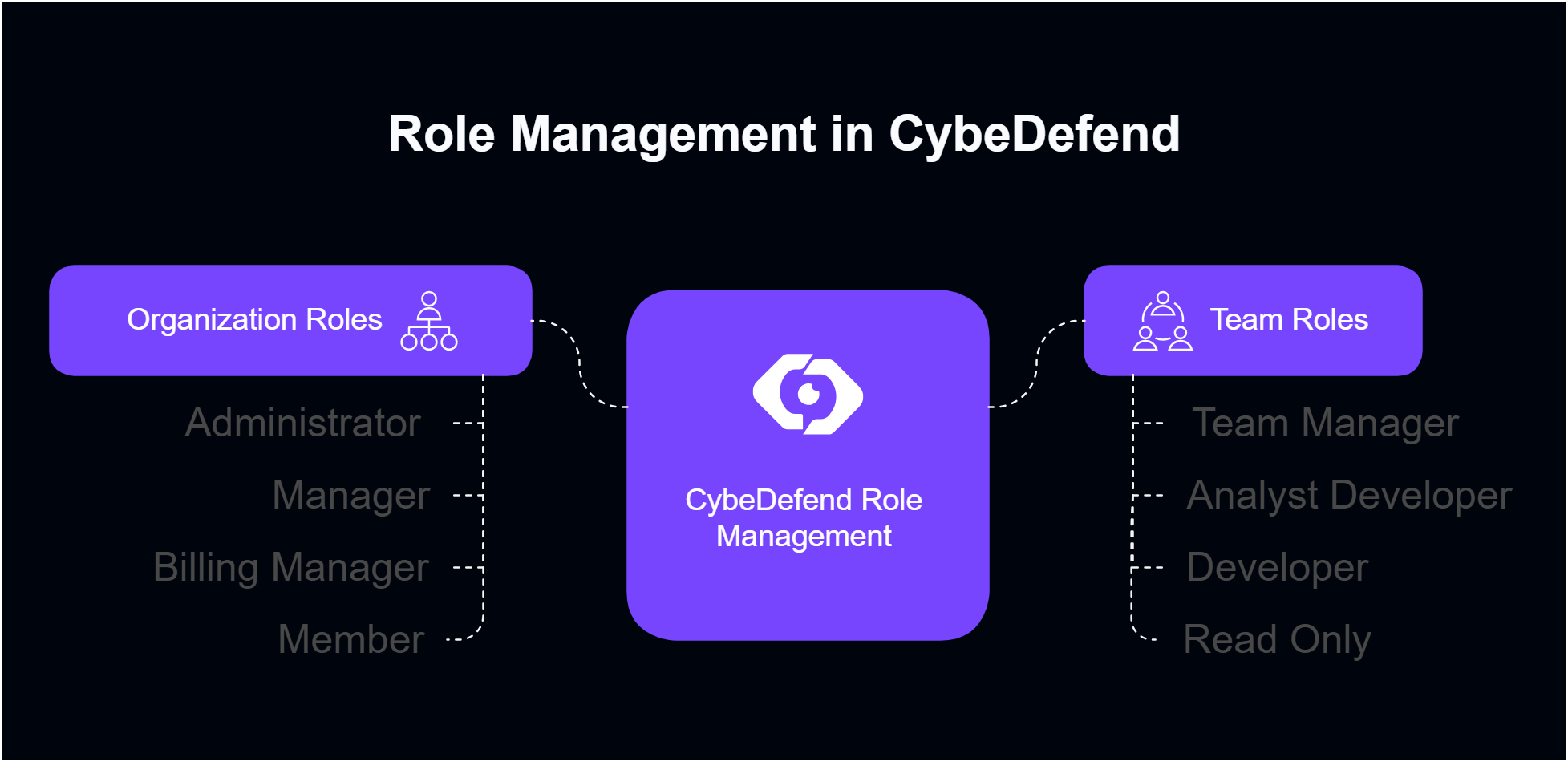
Each Organization has at least one Administrator/Creator, and each Team has at least one Team Manager.
Organization Roles
| Role | Description | Key Permissions |
|---|---|---|
| Administrator | Top-level authority. Cannot modify their own role or another Admin’s role. |
|
| Manager | High-level authority but slightly less than Administrator. |
|
| Billing Manager | Focuses on financial or billing aspects within the organization. |
|
| Member | Standard member with basic read and limited write rights. |
|
Team Roles
| Role | Description | Key Permissions |
|---|---|---|
| Team Manager | Leads the team. Cannot modify their own role or another Team Manager’s role. |
|
| Analyst Developer | Focuses on analyzing scan results and possibly contributing code fixes. |
|
| Developer | Primarily involved in writing code. |
|
| Read Only | Has read access to projects, teams, and scan outcomes but no editing rights. |
|
Managing Organization Member Roles
- Open Organization Settings → Manage
Scroll to the user list and click Manage next to a user’s name. - Choose New Role
Pick from Administrator, Manager, Billing Manager, or Member. - Save Changes
The user’s permissions update instantly.
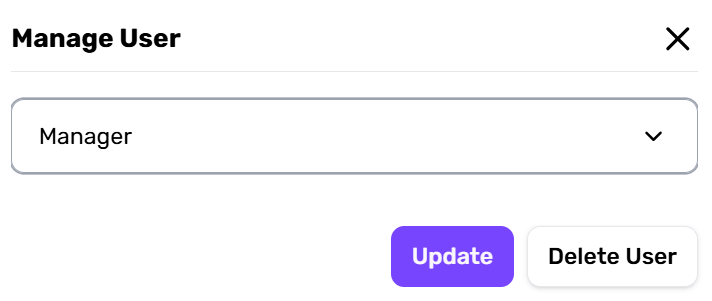
Must keep at least one Administrator. Admins cannot downgrade themselves or each other.
Managing Team Member Roles
- Organization Settings → Teams → Manage
Select a team, find the user, and click Manage next to their name. - Assign Role
Pick Team Manager, Analyst Developer, Developer, or Read Only. - Confirm
The user’s capabilities in that team adjust immediately.
Future Role Customization
Some organizations may require specialized roles. If your use case isn’t covered:- Visit our Roadmap for upcoming role expansions.
- Send feedback to our dev team—if enough customers share a need, we may add a new role.