

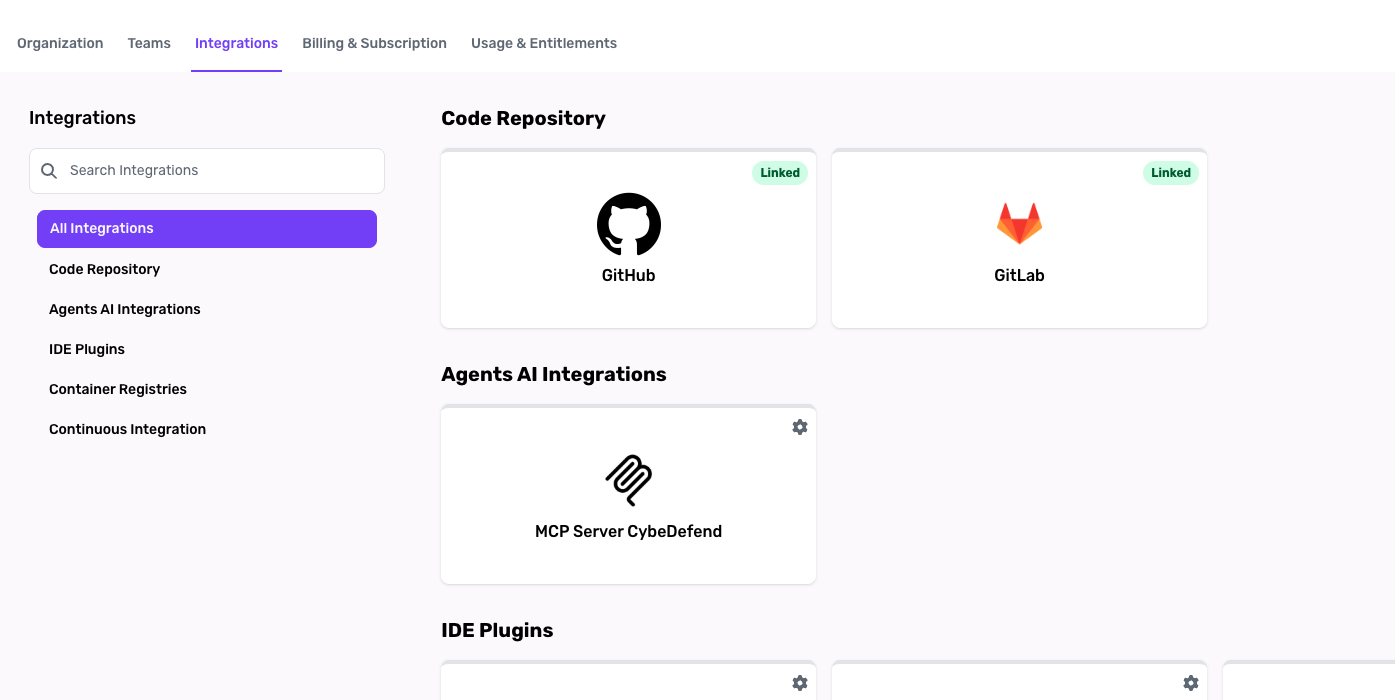
1. Access Organization Integrations
- Navigate to “Integratin Settings” Go to your Organization’s settings > Integrations.
- Search for “GitHub” Within that section, choose the GitHub option for installation instructions.
- Click “Install & Authorize”
You’ll be redirected to GitHub’s official authorization flow.
You must have Administrator or Manager privileges in CybeDefend to add integrations.
2. Install & Authorize CybeDefend on GitHub
When GitHub prompts you to install the CybeDefend GitHub App:- Choose Repositories
Select either all or specific repositories to grant CybeDefend read access. - Confirm Permissions
We need at least read access for scanning. Write access is optional but enables advanced features like Auto-Fix PRs (coming soon). - Complete Installation
Wait a few seconds for GitHub to finalize authorization.
3. Linking Repositories to Your Projects
After installation, you can associate any authorized repository with a new project in CybeDefend:- Go to “Create Project”: Navigate to Create Project.
- Select “Continue with GitHub”: Your authorized repos will appear in a dropdown.
- Choose Your Repo: Pick a repository, assign it to a team, and configure scanning parameters.
If you just installed the app, it may take a few moments before your repositories become visible in the “Create Project” flow.
Related: Connect GitLab · Create a Project · Cybe AutoFix